Guides › Screen triggers
Screen triggers
Show OtterTap a picture, and it clicks or presses a key whenever that picture shows up on your screen.
Make your first trigger
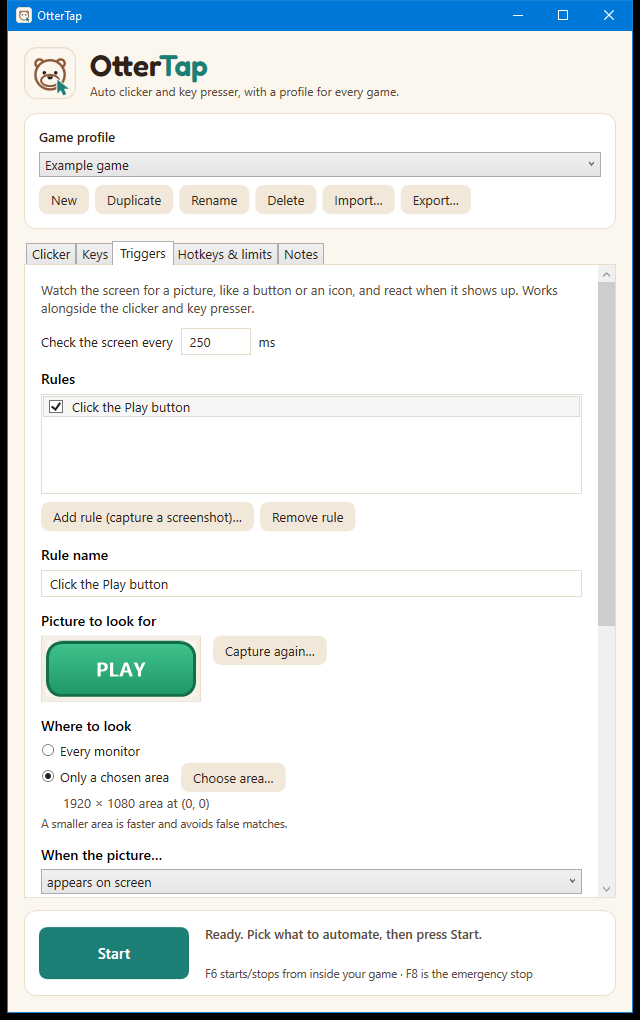
- Get the thing you want to watch for on screen (for example, a Continue button).
- Open the Triggers tab and click Add rule (capture a screenshot). OtterTap's window hides and your screen freezes into a dimmed snapshot.
- Drag a box around the button or icon. Release the mouse to capture it. Press Esc or right-click to cancel.
- Check that the rule you've made appears in the list with your picture shown under Picture to look for.
- Choose what should happen (see below), then click Test now.
Test now: your best friend
Test now hides OtterTap for a moment, looks at your real screen, and tells you what it found, for example:
- Found at (640, 380), match 98% (needs 90%). It works.
- Not found. Closest match was 62%, but 90% is needed. It can't see it. See the tips below.
It also shows how long the scan took.
The settings
| Setting | What it does |
|---|---|
| Where to look | Every monitor or Only a chosen area. New rules search just the monitor you captured on. A smaller area is faster and avoids false matches. Use Choose area to drag one. |
| When the picture… | appears on screen or disappears from the screen. A disappearance counts after it has been gone for two checks in a row, so a flicker doesn't set it off. |
| Repeat (for appears) | Keep acting while it's visible repeats at the "wait at least" time. Act once each time it appears acts once, then waits for it to go away and come back. |
| How closely it must match | 50% (loose) to 100% (identical). Start at 90% and adjust using Test now. |
| Then | Click the middle of the picture (with an optional offset and random offset), or Press a key. For a disappears rule, the click goes where it was last seen. |
| Reaction delay | A random pause, between your minimum and maximum, before acting. It's like a person noticing something. |
| Wait at least | The shortest time between two actions from the same rule. |
| Check the screen every | How often OtterTap looks. If a scan takes longer than that, OtterTap rests at least as long as the scan took, so it never hogs your computer. |
Tips for reliable matching
- Include detail. Pick a part of the button with text or an outline. A flat block of one colour can't be matched, and OtterTap will tell you so.
- Pictures from 10 × 10 up to 1200 × 1200 pixels work. Aim for something clearly bigger than a few pixels.
- Keep the same window size and UI scale. A picture captured at one size won't match when the game is shown at another. If you change your game's resolution, capture again.
- Don't capture things that change, like a timer, a moving character or a health bar. Capture the part that stays the same.
- Use a small search area. It's faster, and it avoids matching something similar elsewhere on screen.
- Lower the strictness a bit if the game's colours or effects shift slightly, but not so low that it matches the wrong thing.
Limits to know about
- Brightness, not colour. OtterTap compares light and dark patterns. Two buttons that differ only in colour look the same to it. Make sure your picture has shape or text that tells them apart.
- Exclusive fullscreen. A game in exclusive fullscreen can appear black to screen capture. Use windowed or borderless-fullscreen mode.
- It sees what's on screen. Something hidden behind another window, or off-screen, can't be seen.
- One at a time. Rules take turns. When one rule is clicking, the others wait for it to finish.